The Developer Playground is the easiest place to make Prisma designs. You choose what you want, Prisma builds it, and you open the result in the editor. No coding is needed.
What you need
- An AI Smart Content account, signed in at picstudio.aismartcontent.co/developer/.
- Prisma Credits in your balance. See refills and credits.
Step by step
- Open the Developer Playground from the developer page.
- Choose an area: the kind of business or topic, for example food and drink, beauty, education or real estate.
- Choose a format: the kind of design, such as a promotion post, an event poster or a product highlight.
- Pick an idea or write your own brief. The ready ideas are a great starting point. Change the words to match your offer, or write your own short brief.
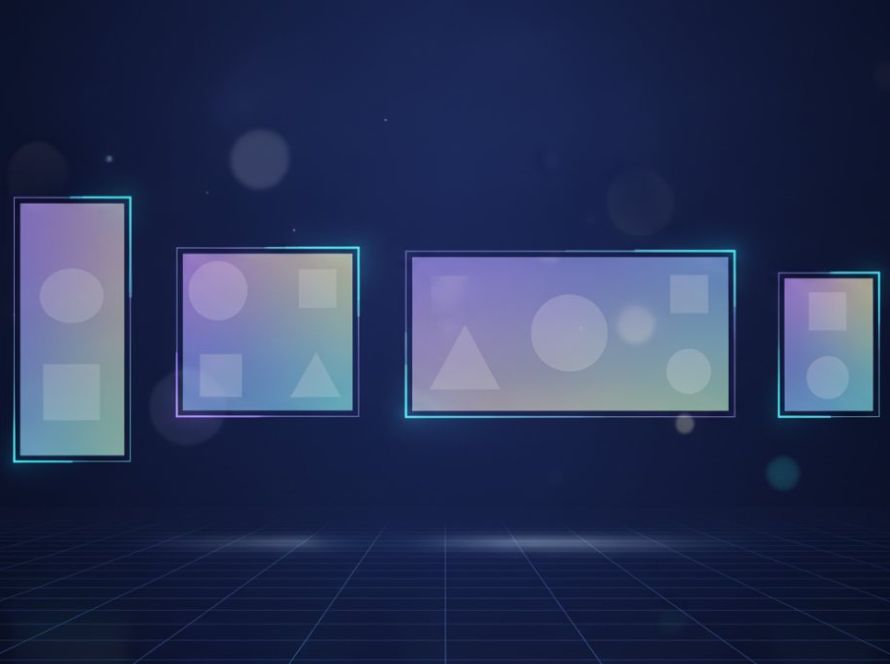
- Choose a size: square 1:1, portrait 4:5, story 9:16, widescreen 16:9 or the wide link size 1.91:1.
- Start the build. It takes a few minutes. You can see the progress while you wait.
- Open the result in the editor to change text, colors and layout, or use AI Smart Magic.
Tips
- Search the ideas with a word like “sale”, “opening” or “coffee” to find a close match quickly.
- Try the same brief in two sizes to have designs for both your feed and your Stories.
- If a build does not finish, try again. If it keeps happening, message our team through the chat on the developer page.
For developers
If you build apps, you can also use Prisma through the Prisma API. Create your API key on the developer page and keep it private, like a password. If you have more than one key, the Playground lets you choose which key a build uses.